
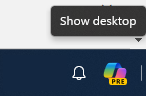
The new Windows 11 February update (KB5034765) brings changes, including the move of the Copilot icon and the removal of the dedicated “Show Desktop” button. But fear not, multi-window warriors! Here’s how to reclaim your desktop-peeking convenience:
1. Access Taskbar Settings:
- Right-click on an empty space on your taskbar.
- Select “Taskbar settings” from the menu.
2. Find the “Show Desktop” Option:
- Scroll down and find the “Taskbar behaviors” section.
3. Enable the “Show Desktop” Feature:
- Locate the toggle labeled “Select the far corner of the taskbar to show the desktop.”
- Slide the toggle to “On.”

Voila! The familiar “Show Desktop” functionality returns, accessible by hovering your mouse over the bottom right corner of your taskbar. You can now enjoy both the new Copilot button and your handy desktop peek!
Bonus Tip: For even faster access, remember the keyboard shortcut: Windows key + D will always minimize all open windows and instantly show your desktop.
This change is also highlighted on Microsoft’s website addressing the changes for the February update.
 DroidKid